

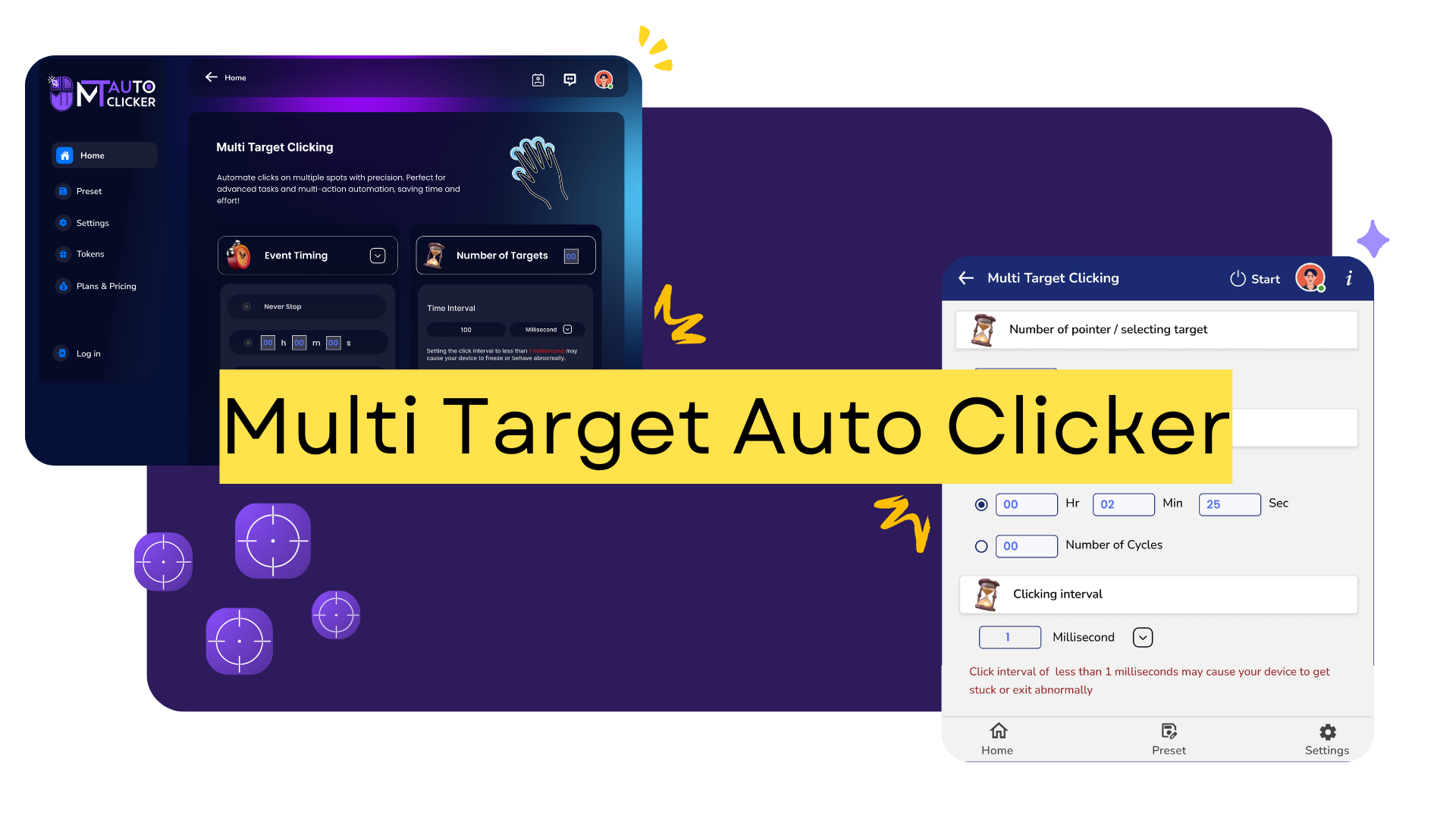
If you've ever used a basic auto clicker, you know the frustration: it clicks one spot, stops, and you have to set it up again for the next location. For any complex task requiring multiple clicks in different places, you're stuck running multiple programs or constantly reconfiguring your setup.
Multi target auto clicking changes everything. Instead of being limited to one click location, you can set up unlimited click points and automate entire workflows with a single setup. Whether you're handling complex form submissions, gaming sequences, or productivity tasks, multi target clicking transforms tedious manual work into smooth automation.
MT Auto Clicker is the only multi target auto clicker that offers true capabilities across every platform - Windows, Mac, browser extensions, and Android apps. While other auto clickers claim to handle multiple targets, they rely on outdated coordinate systems that break when you change screen resolution or move windows.
This guide covers everything you need to know about multi target auto clicking: what makes it different from basic automation, why MT Auto Clicker's approach is superior, and how to get started with advanced automation workflows that actually work.
What is Multi Target Auto Clicking?
Multi target auto clicking automates clicks at multiple screen locations within a single setup. Instead of running separate auto clickers or constantly reconfiguring one tool, you create a complete workflow that handles all your clicking needs automatically.
Traditional limitations: Basic auto clickers click one spot repeatedly. For multiple locations, you need separate programs or manual reconfiguration each time.
Multi target solution: Select all your click locations upfront, set timing and sequence, then let automation handle the entire workflow in one smooth process.
Why it matters: Real automation tasks involve multiple steps - form filling, gaming sequences, and social media management. Multi target clicking handles these complex workflows as easily as single-point clicking.
MT Auto Clicker's Multi Target Advantage
MT Auto Clicker takes a completely different approach to multi target automation that solves the fundamental problems other tools can't handle. Instead of relying on brittle coordinate systems, MT uses visual targeting technology that adapts to screen changes and scales to unlimited sizes.
Visual targeting system: Rather than guessing coordinates or memorizing pixel positions, MT Auto Clicker lets you simply point and click to set your targets. The software captures visual markers around each click point, so when windows move or screens change resolution, your automation continues working.
Unlimited click points: While basic auto clickers struggle to handle even two locations reliably, MT Auto Clicker places no restrictions on the number of targets you can set up. Perfect for incremental games like Cookie Clicker, where you need to boost CPS across multiple features simultaneously.
Adaptive technology: The visual targeting system automatically adjusts when your screen setup changes. Resize your browser, move windows around, or switch between different monitor configurations, and your multi target automation continues working without manual reconfiguration.
Cross platform consistency: MT Auto Clicker delivers the same advanced multi target capabilities whether you're using the Windows software, Mac application, browser extension, or Android app. This means you can create automation workflows on one platform and use the same approach across all your devices.
How to Use Multi Target Clicking in MT Auto Clicker Software
Multi target clicking allows you to automate clicks at multiple locations on your screen simultaneously. Follow these steps to set up your multi-point automation workflow.
Step 1: Set Number of Pointers/Targets
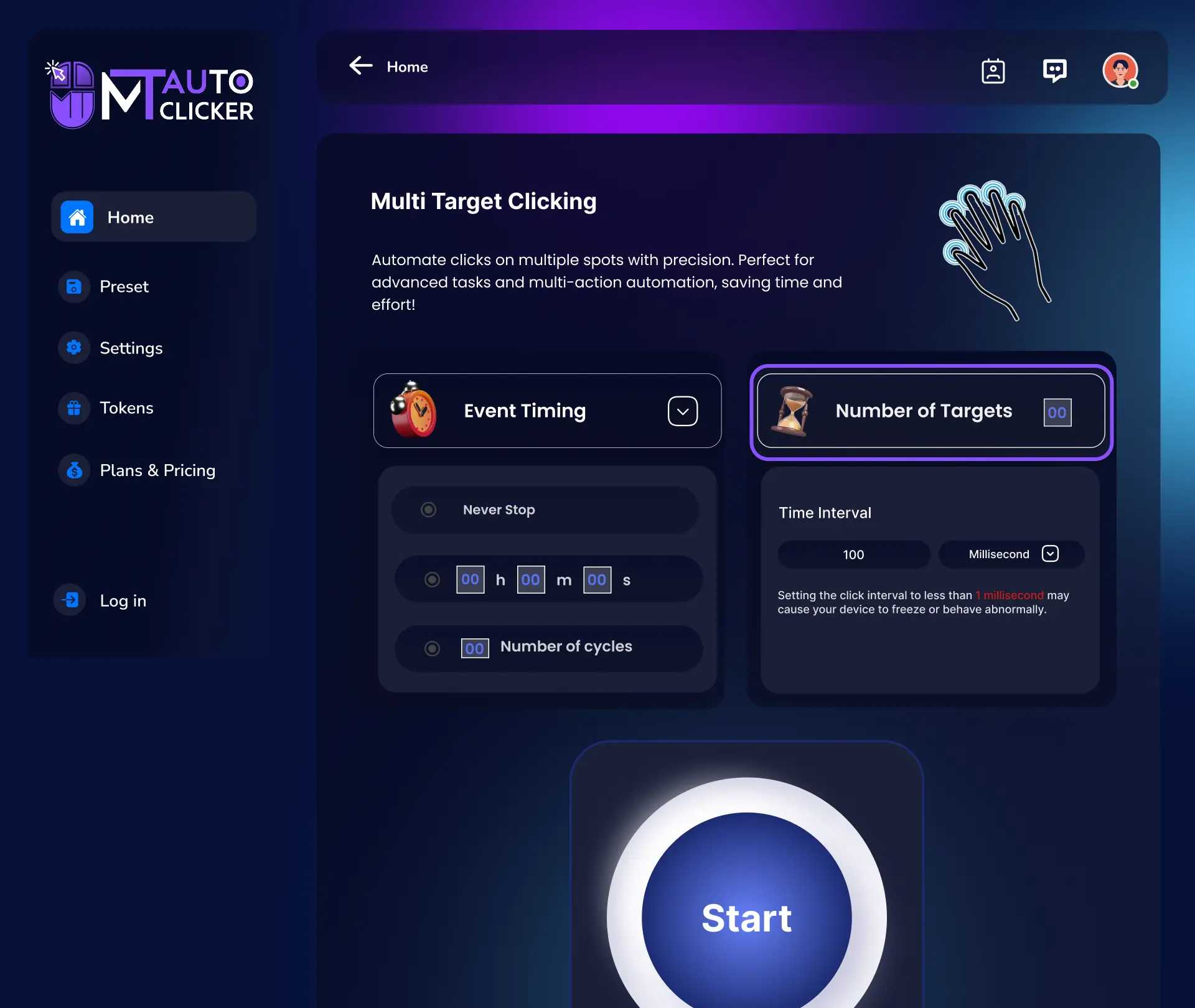
Configure your multiple clicking points by entering the number of locations you want to click on. For example, enter "3" for three different clicking points. Each pointer will be assigned a number (1, 2, 3, etc.), and you can set as many pointers as needed for your automation task.
Step 2: Configure Event Timing
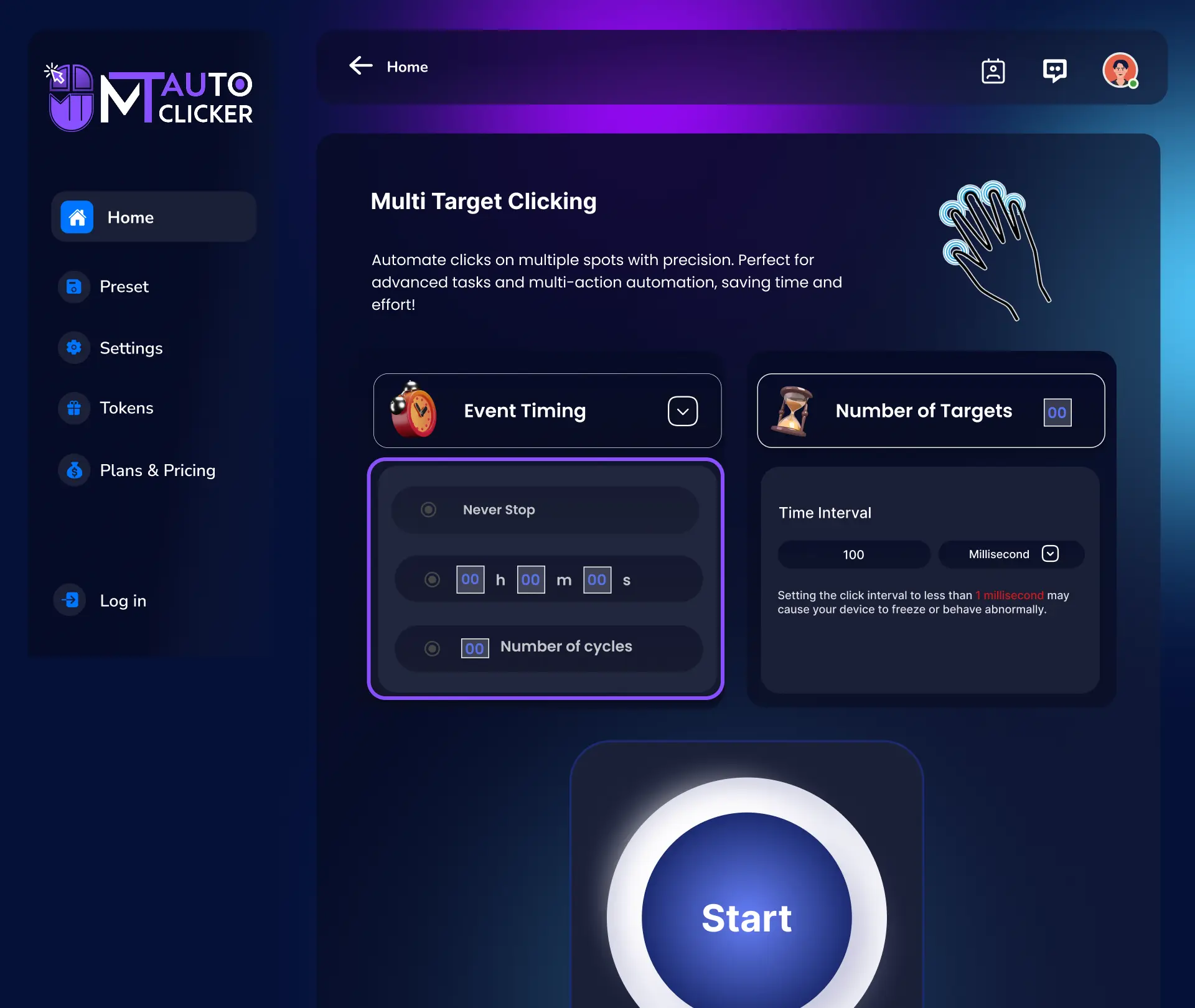
Choose one of the 3 timing options:
- Never Stop: Automated clicking runs continuously until you manually stop it
- Time Duration: Enter time in HH:MM:SS format (example: 01:15:30 for 1 hour, 15 minutes, and 30 seconds)
- Number of Cycles: Enter how many complete rounds of clicking you want (example: 50 cycles = 50 rounds of clicks at all target points)
Step 3: Set Time Interval
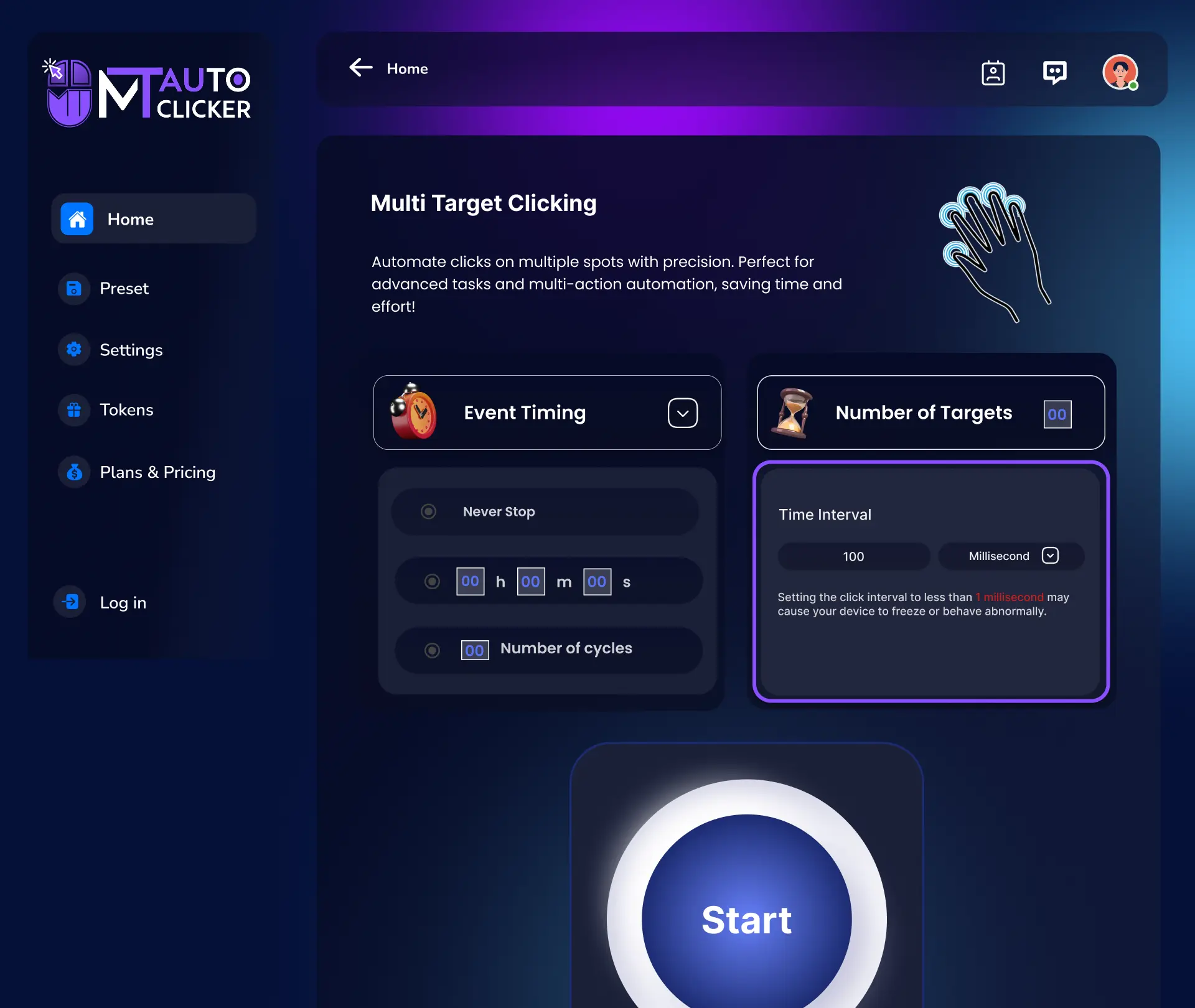
Enter the clicking interval in milliseconds:
- 1000 ms = 1 second between clicks
- 100 ms = 10 clicks per second
- 1 ms = Minimum interval (use with caution)
⚠️ Important: Setting intervals below 1 ms may cause system issues.
Step 4: Click START and Position Pointers

After clicking START, multiple dark blue numbered pointers (1, 2, 3, etc.) appear at the top left of your screen. Drag each numbered pointer to the exact location where you want clicking to occur. Once positioned, MT Auto Clicker automatically clicks these spots in sequence.
MT Control Bar Management
The MT Control Bar provides complete automation control:
- Play/Pause: Temporarily stop or resume clicking
- Save Preset: Save your configuration for future use
- Settings: Adjust timing and intervals without restarting
- Hide/Unhide: Show or hide all pointers on screen
- Plus (+): Add more pointers during automation
- Minus (-): Remove pointers while running
- Close: Exit multi target mode
Save Your Configuration
Click "Save Preset" in the MT Control Bar to store your multi target setup for future sessions. Use F6 as a quick start/stop hotkey for any automation feature.
Multi Target on Other Platforms
Multi Target clicking is also available in the MT Auto Clicker browser extension with similar visual targeting capabilities. For web-based multi target automation, see our complete extension guide for browser-specific setup instructions.
Conclusion
Multi target auto clicking transforms basic automation into powerful workflow solutions. While single-point auto clickers handle simple repetitive tasks, multi target automation enables complex sequences that would otherwise require multiple tools or constant reconfiguration.
MT Auto Clicker stands as the only complete multi target automation platform available across Windows, Mac, browser extensions, and Android. Through visual targeting technology and unlimited click point scalability, it delivers reliable automation that adapts to screen changes and maintains consistency across all platforms.
Ready to move beyond single-point limitations? Start with the platform-specific setup guides to discover how multi target automation can transform your workflows into efficient, reliable processes.