


Finding a reliable auto clicker for Mac shouldn't be this difficult. Most auto clicker software is designed for Windows, leaving Mac users frustrated with tools that don't work or require risky workarounds.
The problem isn't that Mac auto clickers don't exist – it's that most options simply aren't built for macOS. While Windows users have countless automation tools, Mac users need solutions specifically designed to work with Apple's security requirements.
This guide covers everything you need to know about Mac auto clicker options that actually work, why most software fails on macOS, and how to choose the right automation tool for your needs. By the end, you'll have access to the best free auto clickers for Mac that deliver professional-grade performance without compromising your system's security.
Why Mac Auto Clickers Are Different
If you've tried finding auto clicker software for your Mac, you've probably noticed something frustrating: most options either don't work at all or feel clunky and unreliable.
Mac has stricter security requirements - While Windows lets automation software run freely, macOS requires specific permissions for apps to control your mouse and keyboard. This protects your system but means auto clickers need to be designed specifically for Mac's permission system.
Most auto clickers are Windows-focused - The majority of clicking software online is built for PC users. When developers try to make "Mac versions," they're often quick ports that don't work properly with macOS updates or Apple Silicon chips.
System integration matters on Mac - Mac users expect software that feels native and responds smoothly. Generic auto clickers that cause lag, system slowdowns, or awkward interfaces get abandoned quickly.
Performance standards are higher - While Windows users might tolerate buggy automation tools, Mac users are accustomed to polished software that integrates seamlessly with their system.
This is why effective auto clickers for Mac aren't just Windows software with Mac compatibility added as an afterthought. The best Mac auto clickers are purpose-built to work naturally with Apple's operating system and design philosophy.
MT Auto Clicker Mac App (Recommended)
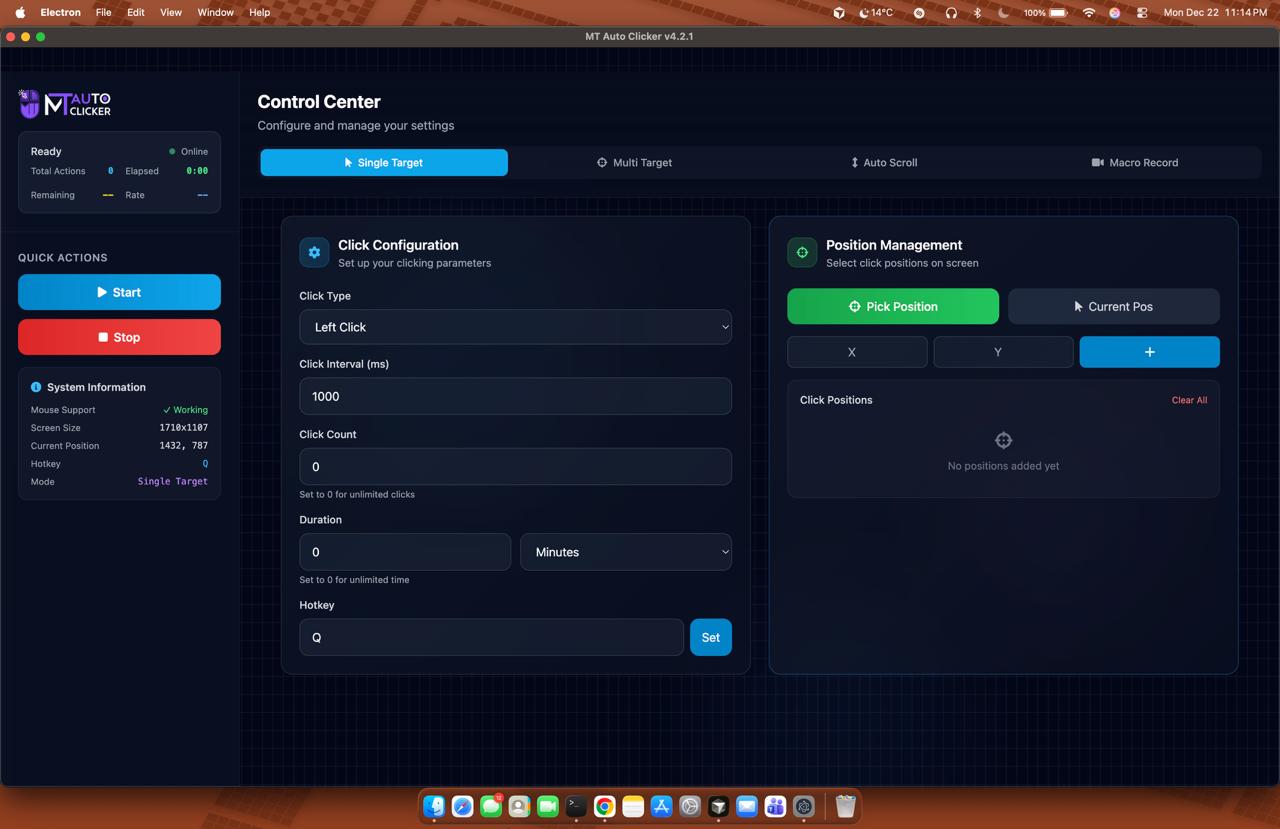
Native Mac Application Overview
If you're tired of browser-only solutions that only work on websites, MT Auto Clicker's Mac app is built to automate clicking anywhere on your Mac. Whether you're playing games, working with design software, or handling repetitive tasks in any application, this native solution works system-wide.
Unlike basic clicking tools, this Mac app handles the complex automation that actually saves you time. No more wearing out your finger on repetitive tasks or missing out on progress because you can't click fast enough.
What This Mac App Actually Does
Handles Any Clicking Task Point anywhere on your Mac screen, set how fast and how long you want it to click, and let it run. Works in Safari, Chrome, games, Photoshop, spreadsheet applications - literally any Mac software that accepts mouse input.
Automates Multiple Locations Simultaneously. Here's where it gets powerful: set up clicks at multiple screen locations and let the app handle them in sequence. Perfect for complex workflows, gaming strategies, or any task that requires clicking multiple buttons or areas in a pattern.
Manages Scrolling and Complex Actions Beyond clicking, automates scrolling through long documents or social media feeds at exactly the speed you want. You can even record entire sequences of actions and replay them whenever needed.
Built for Mac Users Designed specifically for macOS, so it works smoothly with your system instead of fighting against it. No weird compatibility issues or Windows-style interfaces that feel out of place on your Mac.
The bottom line: if you need automation that works everywhere on your Mac, not just in web browsers, this is your solution.
MT Auto Clicker Browser Extension
Cross-Platform Browser Solution
If you need quick automation for web-based tasks on your Mac, MT Auto Clicker’s browser extension works on Chrome, Firefox, Opera, and Edge without any downloads or system permissions. This auto clicker Chrome extension is perfect for Mac users who want instant automation without installing desktop software.
Whether you’re using Chrome on your Mac for work or Firefox for browsing, the extension provides the same reliable clicking automation across all browsers. Mac users can start automating web tasks immediately without the complexity of desktop applications.
Simple Web Automation for Mac
The extension handles browser-based clicking tasks on your Mac effortlessly. Perfect for Cookie Clicker automation, online form filling, social media tasks, or any web-based clicking needs on macOS.
Set your clicking speed, choose your target location on any website, and let it automate repetitive tasks while you focus on other Mac applications or workflows.
For detailed setup instructions and advanced features, check out our complete Chrome extension guide or see how it works specifically for Chromebook users.
Mac App vs Browser Extension
When to Choose a Mac App
- Need maximum clicking speed
- System-wide automation required
- Professional or heavy-duty use
- Advanced features like multi-target clicking
When to Choose a Browser Extension
- Web-based tasks only
- Want a quick, simple setup
- No system permissions preferred
- Casual or occasional use
Performance Comparison
- Speed: The Mac app is significantly faster
- Features: The Mac app has advanced capabilities
- Setup: Extension is easier to install
- Versatility: The Mac app works everywhere
Getting Started with Mac Auto Clicking
Mac App Quick Start
Step 1: Download MT Auto Clicker for Mac
- Visit the MT auto clicker Mac download page
- Choose your Mac type: Intel or Apple Silicon (M1/M2)
- Click the download button to start downloading
Step 2: Install and Set Permissions
- Open the downloaded file and install MT Auto Clicker
- Go to System Preferences > Security & Privacy > Accessibility
- Check the box next to MT Auto Clicker to grant automation permissions
Step 3: Configure Your First Automation
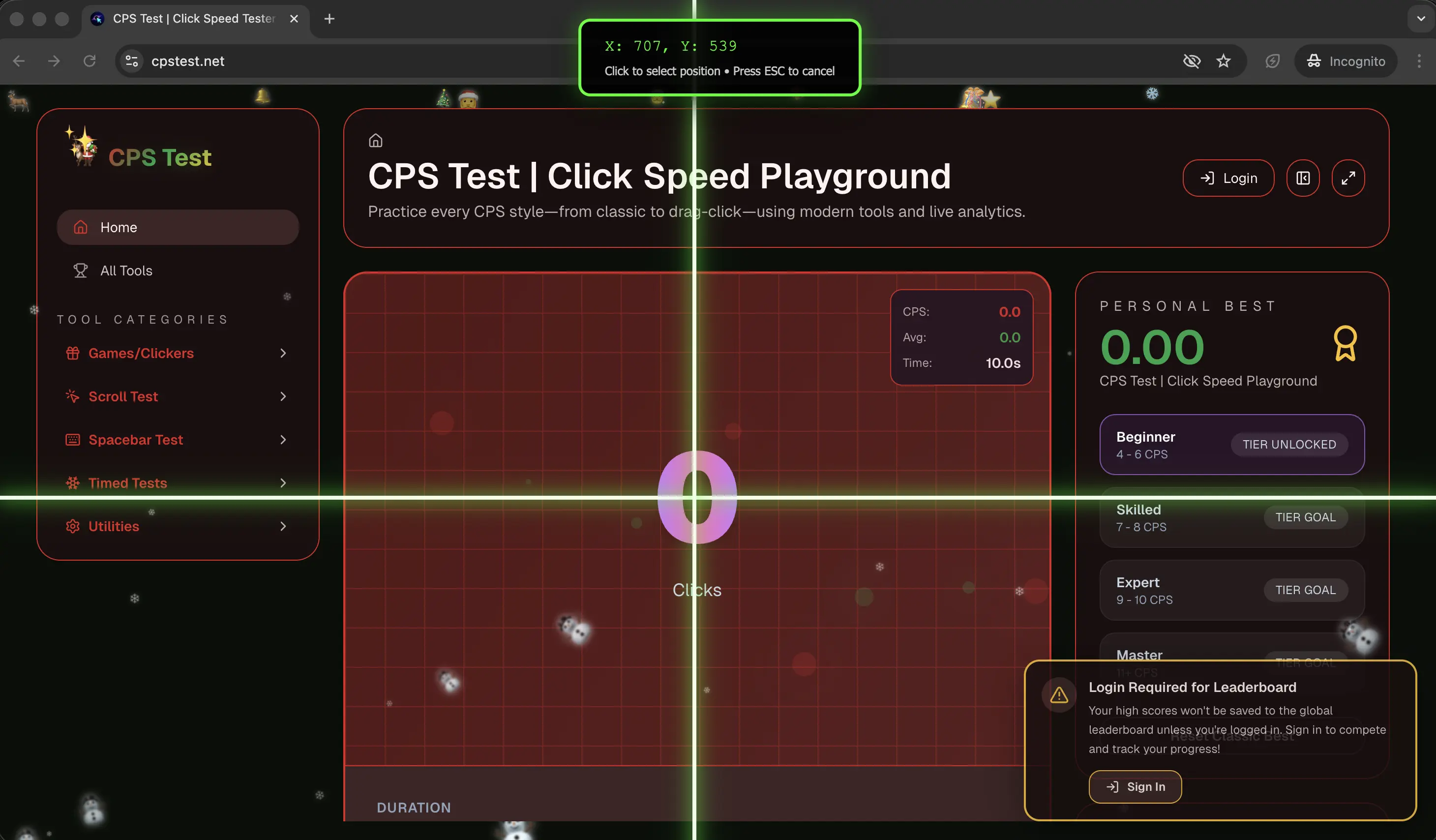
- Launch MT Auto Clicker - you'll see the Control Center with feature options
- Select "Single Target" for basic clicking
- Choose your click type (Left Click is default, or select Right Click if needed)
- Set click interval in milliseconds (1000ms = 1 second between clicks)
- Set click count (0 for unlimited clicks, or enter a specific number)
- Choose duration (seconds, minutes, or hours)
- Assign hotkey (default is F6, or set your own)
Step 4: Position and Start

- Click "Pick Position" on the right side.
- Click where you want MT Auto Clicker to automate on your screen
- MT Auto Clicker captures the X & Y coordinates automatically
- Click the "Start" button or press F6 to begin clicking
- Press F6 again to stop the automation
That's it! Your Mac is now automating clicks exactly where you positioned them.
Conclusion
Finding a reliable auto clicker for Mac doesn't have to be frustrating anymore. MT Auto Clicker delivers exactly what Mac users need: professional automation tools that actually work with macOS instead of fighting against it.
For users who need comprehensive automation capabilities, the Mac app offers advanced features such as multi-target clicking, macro recording, and system-wide automation that you won't find in other free solutions. It's the clear choice when you need maximum performance and versatility.
If your automation needs focus on web-based tasks, the browser extension offers instant setup and reliable clicking for any website without requiring system permissions or software installation.
Both solutions are completely free and actively maintained with regular updates for macOS compatibility. Whether you're automating games, boosting productivity, or streamlining repetitive tasks, you now have access to Mac automation tools that deliver professional results.