


Nothing is more frustrating than downloading an auto clicker that simply won't work. Maybe it won't launch, clicks in the wrong places, or gets blocked by your antivirus software. These problems are incredibly common, but they don't have to ruin your automation plans.
The good news is that most auto clicker issues have simple, proven solutions. Whether you're dealing with permission problems, software crashes, or clicking accuracy issues, there are reliable fixes that actually work. Sometimes you just need the right settings, and other times you need a safe auto clicker that's designed to avoid these headaches entirely.
This guide walks through the 5 most common problems that break auto clickers and shows you exactly how to fix them. By the end, you'll have working automation and know how to choose reliable tools that won't let you down.
Why Auto Clickers Fail
Auto clickers fail for predictable reasons, and understanding these common issues helps you fix them quickly. Most problems stem from software design shortcuts, compatibility issues, or security restrictions that developers didn't properly address.
The biggest problem is that many popular auto clickers are incredibly outdated. Tools like OP Auto Clicker haven't been meaningfully updated in years, yet operating systems keep evolving with new security features and compatibility requirements. When you try running old software on modern systems, conflicts are inevitable.
Permission problems are equally common. Operating systems such as Windows, macOS, and Android have strict security controls that prevent unauthorized automation. When auto clickers don't handle these requirements properly, they simply won't work or get blocked entirely.
Finally, many auto clickers use brittle targeting systems that break easily. They remember exact pixel coordinates rather than recognizing interface elements, so any screen change ruins their accuracy. Understanding these root causes makes the solutions much clearer.
Top 5 Working Solutions
Solution 1: Fix Permission and Access Issues
Problem:
Your auto clicker gets blocked by system security, displays "access denied" errors, or simply won't respond when you try to start it. This happens because modern operating systems have strict controls over which programs can control your mouse and keyboard.
Solution:
For Windows Users: Right-click your auto clicker and select "Run as administrator." If Windows Defender blocks it, go to Windows Security → Virus & threat protection → Exclusions → Add an exclusion. Choose the auto clicker folder to prevent future blocking.
For Mac Users: Go to System Preferences → Security & Privacy → Accessibility. Click the lock icon to make changes, then check the box next to your auto clicker. This grants permission to control your computer's interface.
For Android Users: Open Settings → Apps → Special access → Display over other apps. Find your auto clicker and enable the toggle. Also, check Settings → Accessibility and enable your auto clicker service.
Test Your Setup: After granting permissions, verify everything works by testing your mouse and keyboard to ensure your auto clicker can properly control these inputs.
Note: The exact menu paths might vary by OS version.
Pro Tip: Always download auto clickers from official sources or verified developers. Legitimate software makes the permission process straightforward, while sketchy downloads often create more security headaches than they're worth.
Solution 2: Solve Software Launch Problems
Problem:
Your auto clicker won't open at all, crashes immediately when you try to launch it, or displays error messages about compatibility issues. This usually happens when the software wasn't designed for your specific operating system or version.
Solution:
Check System Compatibility: Before downloading any auto clicker, verify that it supports your operating system. Many auto clickers are Windows-only and simply won't work on Mac or Android devices. Look for tools that explicitly support your platform.
Download Fresh Files: Corrupted downloads cause many launch failures. Delete your current auto clicker files completely, then download fresh copies from the official source. Avoid third-party download sites that might have modified or incomplete files.
Update Your Operating System: Outdated operating systems often can't run newer software properly. Check for system updates and install them before attempting to run your auto clicker again.
Clear Previous Installations: If you've tried installing the same auto clicker multiple times, remnant files might cause conflicts. Use your system's uninstall feature to completely remove previous versions before installing fresh copies.
Try Cross-Platform Alternatives: If a particular auto clicker consistently fails to launch, consider switching to more reliable alternatives. For example, download for Windows or Mac options that are actively maintained and updated for modern systems.
Solution 3: Stop Antivirus False Positives
Problem:
Your antivirus software flags the auto clicker as malware, automatically deletes it, or blocks it from running. This happens because auto clickers modify system behavior, which triggers security alerts.
Solution:
Add to Antivirus Exceptions: Open your antivirus software and find "Exclusions" or "Exceptions" settings. Add your auto clicker's folder to this list to prevent future blocking.
Download from Official Sources: Only download from verified websites or established platforms. Third-party download sites often bundle legitimate software with actual malware, causing genuine security concerns.
Use Windows Defender Exclusions: On Windows, go to Windows Security → Virus & threat protection → Exclusions → Add an exclusion. Select your auto clicker's installation folder.
Verify Digital Signatures: Right-click the software file, select Properties, and check for digital signature information. Legitimate auto clickers from reputable developers include verification signatures.
Note: The exact menu paths may vary depending on the antivirus software and version.
Solution 4: Fix Clicking Location Problems
Problem:
Your auto clicker clicks in the wrong locations after you change screen resolution, move windows, or switch between monitors. Most auto clickers use fixed coordinates that break when your display setup changes.
Solution:
Recalibrate Click Positions: Reset your click locations whenever you change screen settings or move windows. Open your auto clicker settings and manually set new coordinates for each target position.
Use Platform-Specific Tools: Choose auto clickers designed for your specific use case. For web automation, use an auto clicker extension made specifically for websites. For desktop applications, use native software designed for system-wide automation.
Test Before Running: Always verify click positions work correctly before starting long automation sessions. Run a quick test to ensure clicks land in the right spots after any system changes.
Consider Visual Targeting Solutions: If coordinate problems persist, look for auto clickers that use visual recognition instead of fixed pixel positions. These tools visually identify interface elements and automatically adapt to screen changes, eliminating the need for constant recalibration.
Solution 5: Resolve Performance and Stability Issues
Problem:
Your auto clicker freezes, crashes during operation, or causes system slowdowns. This happens when the software conflicts with other programs or uses excessive system resources.
Solution:
Close Background Programs: Before running your auto clicker, close unnecessary applications like video editors, games, or multiple browser tabs that consume memory and processing power.
Restart Your Computer: A simple restart clears temporary conflicts and memory issues that cause crashes. This often resolves sudden stability problems.
Avoid Running Multiple Auto Clickers: Don't run several automation tools simultaneously. They compete for system control, causing crashes and unpredictable behavior.
Check Resource Usage: Open Task Manager (Windows) or Activity Monitor (Mac) to monitor CPU and memory usage. If your auto clicker uses over 30% of system resources, consider lighter alternatives.
Use Updated Software: Choose actively maintained auto clickers with regular updates. Outdated software often has memory leaks and stability issues that newer versions resolve.
Choose Reliable Auto Clicker Software
What Makes Auto Clickers More Reliable
Regular Updates and Maintenance: Choose auto clickers that receive frequent updates to fix bugs and maintain compatibility with new operating system versions. Software that hasn't been updated in years will inevitably develop problems.
Cross-Platform Testing: Look for tools that work consistently across different devices and operating systems. This indicates thorough testing and professional development standards.
Visual Recognition Technology: Auto clickers that use visual targeting instead of fixed coordinates adapt automatically to screen changes, eliminating most clicking accuracy problems.
Clean Installation Process: Reliable auto clickers install smoothly without triggering excessive security warnings or leaving behind problematic files when uninstalled.
MT Auto Clicker: Built to Avoid These Problems
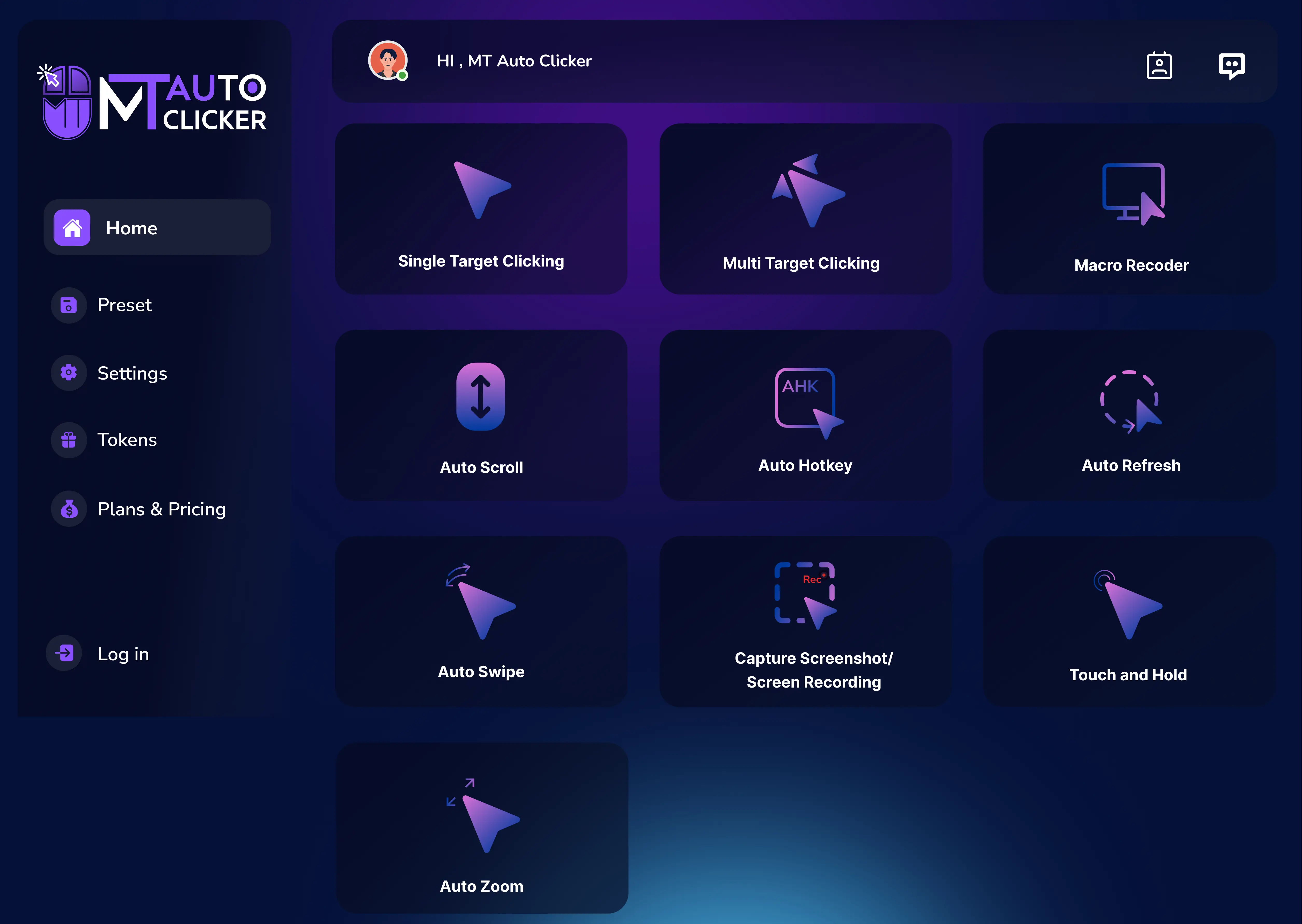
Based on these reliability factors, MT Auto Clicker stands out as a solution designed to prevent the common issues we've discussed. It receives quarterly updates to maintain compatibility with evolving operating systems, works consistently across Windows, Mac, browser extensions, and Android platforms, and uses visual targeting technology that eliminates coordinate-based clicking problems.
The software installs cleanly without security conflicts and has been verified safe by VirusTotal, addressing the antivirus false positive issues that plague many auto clickers. This comprehensive approach to reliability is why many users switch from traditional auto clickers to MT Auto Clicker after experiencing problems with other tools.
Conclusion
Auto clicker problems are frustrating, but they're fixable. Most issues come from outdated software, permission conflicts, or poor compatibility with modern systems.
The five solutions in this guide will get your current auto clicker working again. However, constantly troubleshooting these problems wastes time that could be spent on actual automation.
The better approach is to choose reliable auto clickers designed to avoid these issues entirely. Tools with regular updates, proper permissions handling, and visual targeting eliminate most common problems before they start.
Your automation should work consistently without constant fixes. Apply these solutions to get back up and running, then consider upgrading to more dependable tools that won't let you down.